
Databricks has introduced Power BI as a task within its Workflows feature, allowing users to automate the publishing of semantic models directly from Unity Catalog to Power BI. This enhancement bridges the gap between data engineering and business intelligence, enabling faster, more reliable, and secure reporting.
What is Databricks workflows?
Databricks Workflows is a managed orchestration service that enables users to define, manage, and monitor multitask workflows for ETL, analytics, and machine learning pipelines. It supports a wide range of task types, including SQL queries, Databricks notebooks, and dbt commands. With advanced control flow, scheduling, built-in alerts, and monitoring, workflows offer high reliability and versatility. It is the perfect tool for automating data pipelines to prepare data for reporting.
Introducing the new Power BI task
Building upon the existing capability to publish datasets to Power BI manually, Databricks has introduced the Power BI task within Workflows. This task allows users to automate the publishing of semantic models directly from Unity Catalog to Power BI, ensuring that they are consistently updated and available for analysis without manual intervention.
Key benefits
Publishing manually from Databricks to Power BI was already secure and governed by Unity Catalog and Microsoft Entra ID. The new Power BI task takes this further by introducing:
- Faster, cheaper, and more reliable insights:
Semantic models are updated only when the data changes, reducing unnecessary refreshes and costs while ensuring that reports reflect the latest state of the data. - CI/CD Integration:
Easily include semantic model deployment in your CI/CD pipelines, ensuring consistency across development, staging, and production environments without manual intervention. - Disaster Recovery:
Should data loss or corruption occur, rebuilding semantic models becomes effortless, just rerun the workflow to regenerate everything from source-controlled notebooks and Unity Catalog schemas. - Monitoring:
Workflow features such as retries, duration thresholds and notifications allow for detailed monitoring and enhanced resilience.
How to get started?
Getting started with the new Power BI task is straightforward; We will run you through it with our example use case. If you are familiar with publishing manually, then most of the requirements should be in order. For an in-depth explanation of manual publishing and the needed requirements, we refer to a recent blog post of our colleges at DataVise.
However, you still need to create a Power BI connection in Unity Catalog for orchestration. This can be done by a Metastore Admin or a user with the ‘CREATE CONNECTION’ privilege in the Databricks Catalog Explorer through a wizard using your OAuth credentials or a service principal. The wizard can be found under Connections' in the External data’ tab.
Use Case
What is timelier than binge-watching a few series over the weekend on one of the many streaming platforms?
Streaming services thrive by understanding user behaviour. Questions they often explore include:
- What content is most engaging?
- Which users are at risk of churning?
- How do different regions and devices impact viewing habits?
Let’s consider a global streaming service that collects user data, content metadata, and viewership statistics.
In Databricks, we engineers use notebooks with SQL and PySpark to construct a medallion architecture and build a dimensional model with a fact table for viewership and dimension tables for users and content. The figure below shows the different tasks of the workflow in Databricks. The first three tasks are the medallion layers. The last task is the Power BI task, clearly showing that the semantic model in Power BI will be updated after the gold layer is refreshed.

We now set up the new Power BI task to update the semantic model. Our configuration is shown below. Besides the regular settings, such as task name, type, depends on and warehouse, there are a few task-specific settings.
1. Power BI connection:
How to create a connection has been described above. The workspace that you are attempting to publish needs to have Premium capacity. The capacity also needs to be configured such that Read-write operations using the XMLA Endpoint are enabled. This can be done via the capacity settings in the Admin portal on Power BI.
2. Specify the semantic model:
You can choose an existing, model or create a new semantic model. The option `Overwrite existing model’ is selected to ensure that all changes to the underlying schema and data are propagated to the semantic model in Power BI and thus make sure that the semantic model reflects the Gold layer perfectly at all times. However, a downside is that analysts and business users who create reports using the semantic model will be affected by changes to the schema, e.g. deletion of columns, and need to be informed. As for query mode, you have the option to use Direct Query or Import. We went for Import mode and ticked the option `Refresh model’ to also trigger a data refresh. Removing the need for manual refresh or scheduling refreshes in Power BI and aligning them with the refresh of the underlying medallion structure.
3. Set the tables or schema in Unity Catalog that need to be used in the update and the authentication method:
We went for OAuth with Single Sign-On to take the biggest advantage of the integration with Unity Catalog and Microsoft Entra Id in terms of security and governance. Specific settings for retries, notifications and duration thresholds were not set in this example.

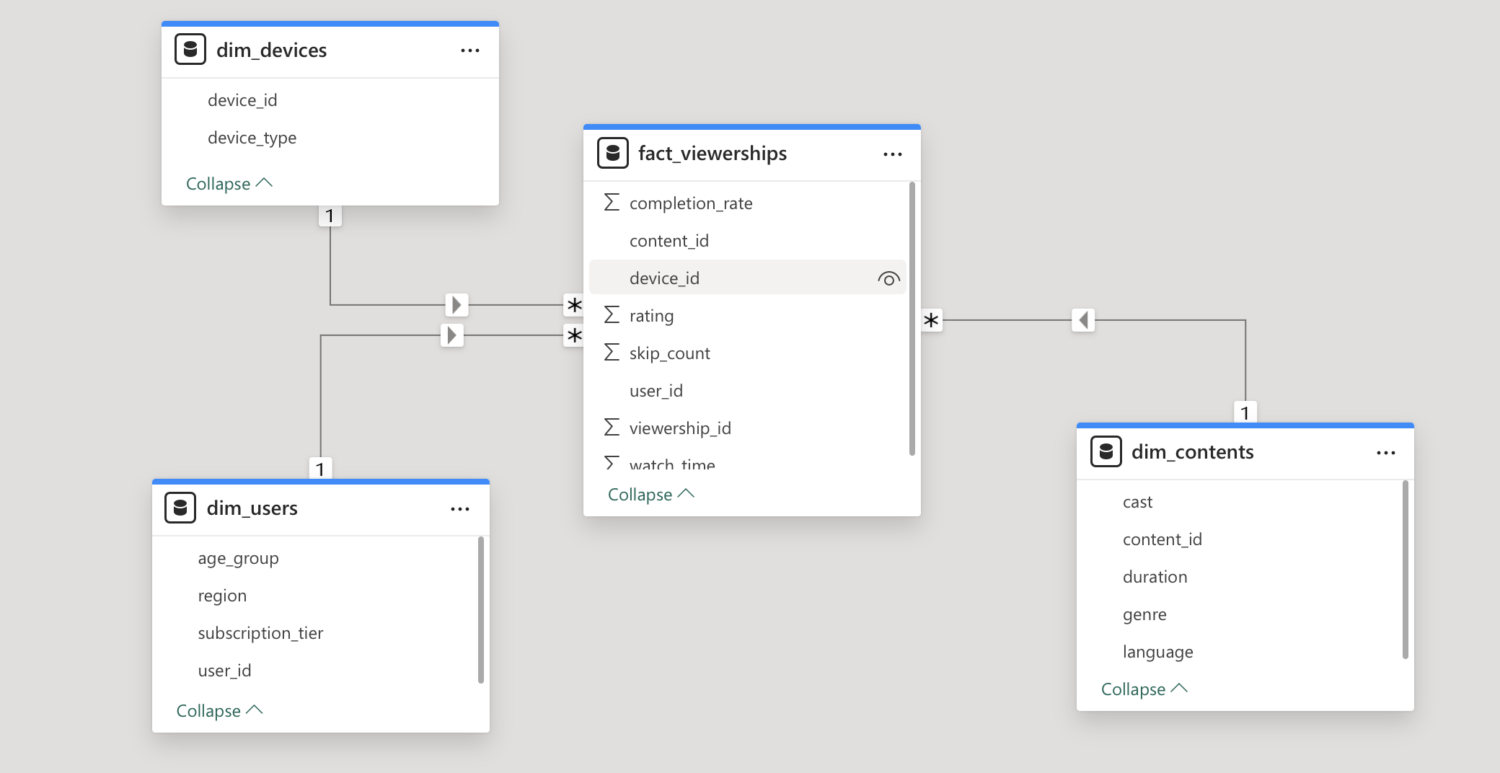
After a manual or scheduled run the semantic model is updated in Power BI, together with the data in Databricks. If you define the primary and foreign keys constraints in the description of the Gold layer tables, the relationships between the tables are also transferred over to the dataset in Power BI, see figure below. Hence, analysts can start working on the reports with confidence in the data quality and freshness.

The needs of business users can of course change over time. Imagine that, the streaming service wants to know the impact of the device that is being used to watch content. The data engineers modify the notebooks to include the requested data in the model. However, since the workflow with a Power BI task is already in place no further work is needed. On the next scheduled, or triggered if preferred, run the semantic model is updated and the new dimension is available to use in Power BI reports. This is visualised in the figure hereunder.
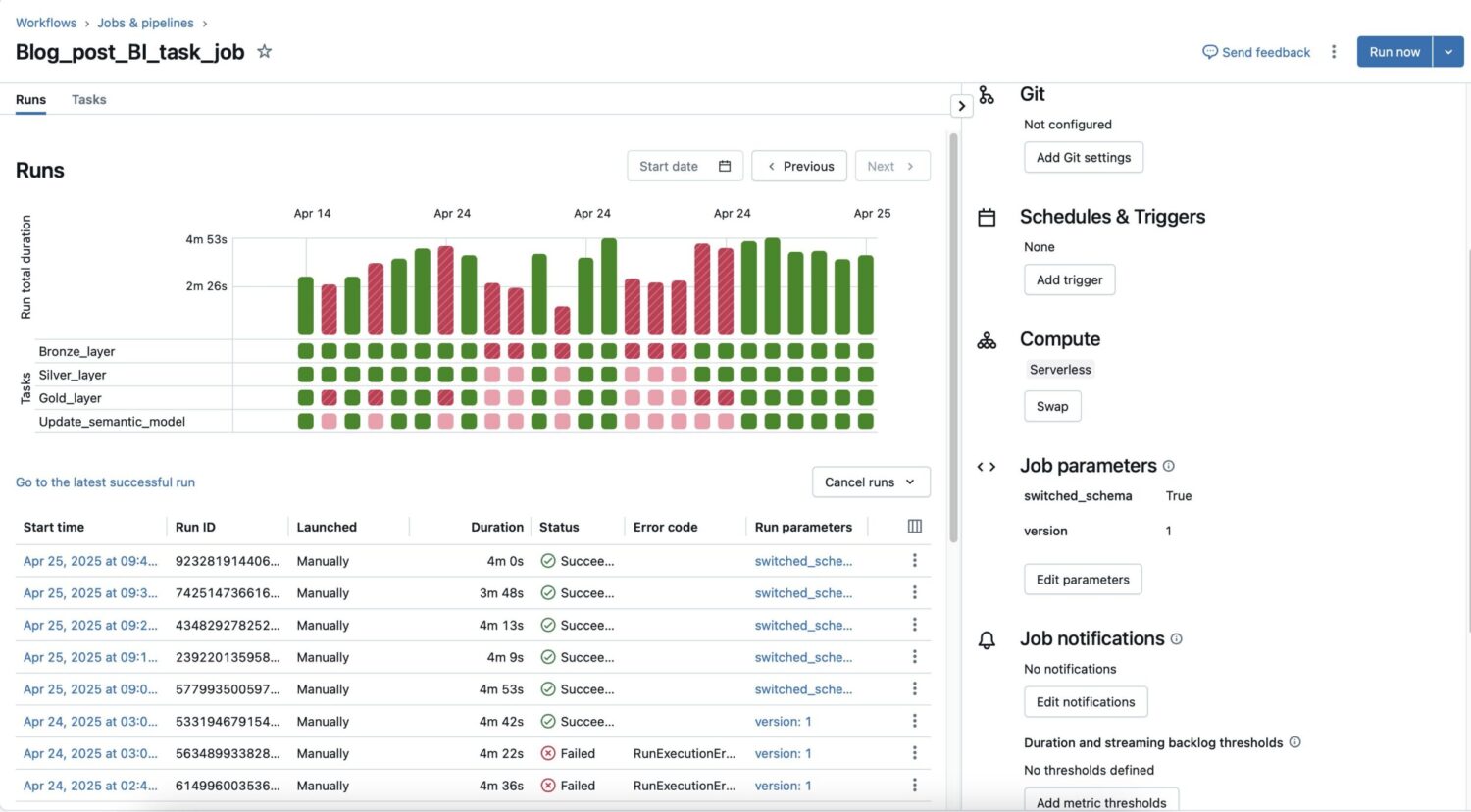
Just as for workflows with other tasks, individual runs can be monitored from within Databricks to debug and enhance performance. The next image shows this overview for our workflow. Settings such as the used compute, job parameters, notifications and schedules can be changed. If you use Import for the BI query mode as we did in this example, it might be beneficial to trigger runs on the arrival of new files, to keep the dataset in Power BI fresh.
Final thoughts
The new Power BI task in Databricks Workflows marks a significant step in automating and streamlining the data-to-insights pipeline. By integrating data preparation, modelling, and reporting, teams can reduce manual work, enhance governance, and deliver timely insights with minimal operational overhead. It’s a must-have for any data-driven organization looking to scale its BI capabilities with agility and precision.
Sources:
1. Databricks. (z.d.). Announcing automatic publishing to Power BI. , van https://www.databricks.com/blog/announcing-automatic-publishing-power-bi
2. Databricks. (z.d.). Power BI integration. In Databricks documentation (AWS). , van https://docs.databricks.com/aws/en/jobs/powerbi
3. Datavise. (2024, 11 januari). Van Databricks naar Power BI publiceren: hoe begin je eraan?, van https://www.datavise.be/post/databricks-publish-to-power-bi


