Using semantic links in Microsoft Fabric became a lot easier with the introduction of Semantic Link Labs. Semantic Link Labs is an open-source Python library built upon the existing Semantic Links implementation in Fabric. As of the writing of this blog post Semantic Link Labs is still in early access but a lot of useful features are already present.
The library can be installed in your notebooks directly with a simpleSemantic Layer
Before exploring the features of Semantic Link Labs, it’s important to understand what semantic links are and why they matter within Microsoft Fabric. Semantic links are designed to bridge the gap between semantic models and the data science or engineering experience. They enable seamless connections between analytical environments, such as notebooks, and semantic models.
Through these links, users can directly access relationships, measures, calculated columns, hierarchies, DMVs, and DAX queries defined in the semantic model. This eliminates the need to manually recreate business logic that already exists in measures, allowing data professionals to query semantic models directly from their preferred data science tools.
In Microsoft Fabric, semantic links can be leveraged using the sempy Python library or through an Apache Spark connector, which supports multiple languages including PySpark, Spark SQL, R, and Scala. The core data structure underlying this integration is the FabricDataFrame, a subclass of the pandas DataFrame that enriches data with semantic metadata and lineage tracking.
With this foundation, Semantic Link Labs builds upon these capabilities by providing an experimental and extensible environment to explore, test, and innovate with semantic link features across Fabric. It allows users to prototype integrations, experiment with new semantic operations, and streamline collaboration between data engineers, analysts, and AI developers, all within the Fabric ecosystem.
Use Cases
In this section we highlight some use cases of a semantic link by using the Semantic Link Labs library. Although these examples are often tailored to specific scenarios, they may serve as inspiration for your own implementations.
SQL Queries in Semantic Link Labs
Semantic Link Labs allows you to connect to your data warehouses or lakehouses from within a notebook, even if the notebook isn’t directly connected to any data source or if it is connected to a different one. Doing so you are able to query any tables within these data platforms.
This feature can be useful when creating generic queries in notebooks within pipelines. You could include parameters for the warehouse or lakehouse, one for the table and one or more for the query itself. Through this action, a notebook can be used multiple times in the same pipeline for transforming different tables while specifying all fields from the notebook interface itself.
The code block below displays how the principle of generic queries could be used with semantic link labs. Here, we see that first the connection gets created using the built-in Python ‘with’ keyword allowing for easy connection management. We created a generic query that will select all data from a specific year. The result of this query in then passed into a temporary view for later use in the pipeline. All parameters used in this query can be passed into the notebook from within the pipeline interface resulting in the before mentioned reusability. In this example the year, table and even the specific lakehouse name is passed using parameters. To make this even more generic we could even specify on what fields to filter in our WHERE clause using another parameter making it even more generic.
					import sempy_labs as labs

with labs.ConnectLakehouse(lakehouse=lh_name_parameter) as conn:
    df = conn.query(
				f"""
				SELECT
				  *
				FROM {input_table_parameter}
				WHERE Year = {year_parameter}
				""")
    display(df)
    df.saveAsTable(output_table_parameter)
Creating Delta Tables
A Delta table in Microsoft Fabric is a data storage format that enables ACID transactions, versioning, and efficient data updates on large-scale datasets within a lakehouse. These tables can be created with PySpark using ‘df.write.format(“delta”).saveAsTable(…)’. This will create a managed table, meaning that both the table’s Delta files (the data) and its metadata are stored in the Lakehouse’s managed storage location (the /Tables folder in OneLake) and are registered in the Lakehouse’s catalog. When passing a specific location to ‘saveAsTable’ (in the form of an abfss uri) you can specify other locations, such as other lakehouses, to save these tables which results in external tables. But Semantic link labs also allow you to create these managed delta tables in other lakehouses without explicitly adding the data source to your notebook. This can be done by calling ‘save_as_delta_table’ on the ‘sempy_labs’ object.
The code block below shows how such a table can be created using the ‘sempy_labs’ package. The variables here are your dataframe which contains the table data you want to save to a delta table, the name of the table, the write mode which in this case will overwrite any existing data in the table, wether to merge the schema of the new table with that of the already existing table, the schema itself, your lakehouse name and finally your workspace name.
					import sempy_labs as labs

labs.save_as_delta_table(
    dataframe=df,
    delta_table_name='table_name_parameter',
    write_mode="overwrite",
    merge_schema=False,
    schema=None,
    lakehouse='YannickLakehouse',
    workspace=None
)
This function can thus be used to create tables from within a notebook into any lakehouse you have permission for. Thereby, also allowing you to create tables in bulk all from within the same notebook.
Find and Filter Power BI and Fabric Items
As an administrator, you have access to exclusive functions in Semantic Link Labs such as ‘list_items’, ‘list_workspaces’, and ‘list_reports’ which provide a comprehensive overview of all items within your workspace. These functions are particularly valuable for gaining analytical insights and managing resources efficiently. While the same capabilities are available through Microsoft’s REST API, Semantic Link Labs simplifies the process by acting as a wrapper around it. It handles authentication, token acquisition, and environment configuration automatically, allowing administrators to manage their Fabric and Power BI environments with greater ease and consistency.
Visualizing Dependencies
To gain more insights into dependencies inside a semantic model, we can use a semantic link labs function like ‘get_measure_dependencies’.
df_deps = labs.get_measure_dependencies(dataset, workspace)
This function lists all dependencies of all measures present in the model in a Dataframe like in the table snippet shown below.
| Table Name | Object Name | Object Type | Referenced Table | Referenced Object | Referenced Object Type | Parent Node |
|---|---|---|---|---|---|---|
| Coffee_sales | Total Sales | Measure | Coffee_sales | Coffee_sales | Table | Total Sales |
| Coffee_sales | Total Sales | Measure | Coffee_sales | money | Column | Total Sales |
| Coffee_sales | Holiday Sales | Holiday Sales | b_holidays | b_holidays | Table | Holiday Sales |
| Coffee_sales | Holiday Sales | Holiday Sales | b_holidays | Holiday | Column | Holiday Sales |
| Coffee_sales | Holiday Sales | Holiday Sales | Coffee_sales | Total Sales | Measure | Holiday Sales |
This way, we see which measures depend on eachother and we can use this dependency information to visualize the dependencies in a directed graph. The graph below shows for every measure in an example semantic model, the objects it depends on (tables and columns). This type of visualization can help us in identifying possible faults in our dependencies and solving them more efficiently.

Optimizing and adjusting Semantic Models
We often want or need to adjust semantic models. Sometimes we change the name of a column which breaks visualisations that reference this column. Adjusting this in Power BI is a tedious proces. Semantic Link Labs provides the ability to make these adjustments right from a Fabric notebook. In the snippet below, we load the json associated with the report we want to adjust and create a modified version of this json where the name of the column coffee_name is changed into Coffee Type.
					from sempy_labs import report as rep
import json

target_report = "CoffeeLabsReport"

old_report = rep.get_report_json(target_report)
new_report = json.loads(
    json.dumps(old_report)
        .replace("coffee_name", "Coffee Type")
)
Another common application is making semantic models available in multiple languages. Calculating a new column for every column that needs to be translated is a time consuming process. With semantic link labs, we can calculate these columns from inside a notebook and are free to choose the source of our translations.
Update semantic models from a notebook
After building a semantic model in Power BI, we can connect it with a notebook using a semantic link. In this notebook we can apply the adjustments we want and save this as a Delta table to OneLake using Apache Spark. Finally, we can connect the delta table back to power BI using the Direct Lake feature or by doing a refresh of the dataset. This functionality is already available in the base library of semantic links, but is also extended in the semantic link labs library.
Viewing Power BI reports
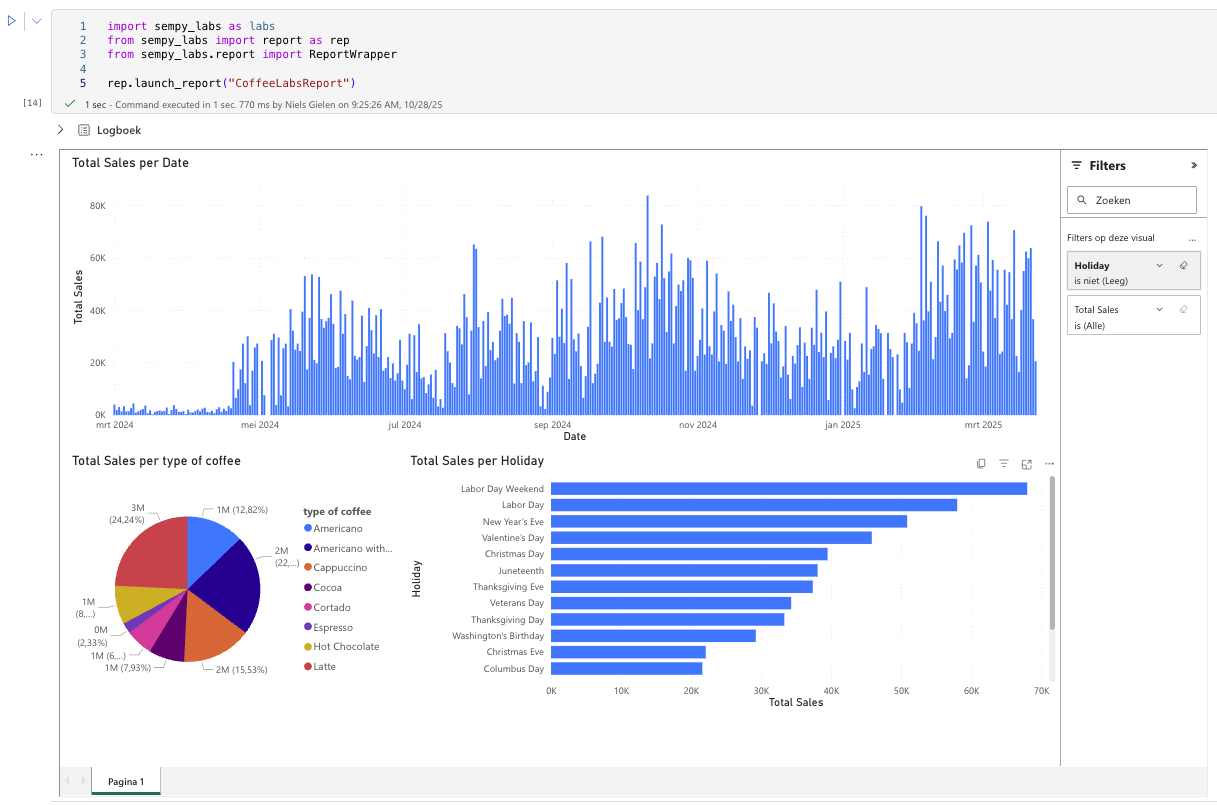
After we made changes to a semantic model, we might want to verify if the changes we made, propagated correctly to the Power BI report. While opening the report directly in Power BI seems the way to go, there also exists another solution to take a quick peek. Using the ‘launch_report’ function we can see the specified report directly from within our current notebook as seen below.
Conclusion
All that was mentioned above comes back down to one thing: automation. All features run inside notebooks which can then be used inside pipelines. These pipelines can trigger data loads, semantic model refreshes and other activities along side it. But you could also run another notebook at the end of your pipeline to perform checks for model quality to ensure everything complies with your standards. Of course, this blogpost only mentions a small subset of all features of the Semantic Link Labs library as the possibilities are endless.
With this library technical processes are simplified and possibly automated, empowering people to focus on higher level activities and allowing tasks that are better suited for machines to be efficiently handled without human intervention.


